👨👩👧 Family-Assisted Setup Guide
Configuring TapAlert for a Senior Using Magic Link
This guide is for family members, caregivers, and anyone helping a senior or less tech-savvy person get TapAlert fully configured. Using the Magic Link feature, you can set up the entire app from your own device and deliver a ready-to-use configuration to the senior with a single tap.
Overview: How Magic Link Works
The Magic Link feature lets a tech-savvy person ("the admin") do all the configuration work, then share it as a special link. When the senior taps that link on their phone, TapAlert automatically applies the full configuration — contacts, messages, settings, and everything — in one step.
Admin's phone                         Senior's phone
─────────────────────────────────     ─────────────────────────────────
1. Open Admin Setup screen       →    (senior does nothing yet)
2. Fill in all configuration
3. App tests and validates
4. Generate Magic Link           →    (link shared via WhatsApp, email, etc.)
                                       5. Senior taps the link
                                       6. TapAlert opens and asks to confirm
                                       7. Senior taps "Apply" → app is ready!
The senior never needs to type anything or navigate any settings.
Before You Begin: What You'll Need
Depending on how you want to set up alert delivery, gather these before starting:
Always required
- The senior's first name (used to personalize alert messages)
- Phone numbers of the people who should receive alerts (family, neighbors, etc.)
Optional: For automated SMS via Twilio
If you want alerts to be sent automatically without any app on the senior's phone needing to be open:
- A Twilio account (free trial available at twilio.com)
- Twilio Account SID (from the Twilio Console dashboard)
- Twilio Auth Token (from the Twilio Console dashboard)
- A Twilio phone number, OR an alphanumeric Sender Name (e.g., "TapAlert") if your country supports it
- Your own phone number — the app will send a test SMS to verify Twilio works
Optional: For email redundancy
If you want alerts sent as emails in addition to SMS:
- A dedicated email address to send from (Gmail, Outlook, iCloud, Yahoo, or custom)
- An App Password for that account (see Step 4 below)
Step 1: Open Admin Setup on Your Phone
- Install TapAlert on your own phone (you need the app to generate the Magic Link).
- Open TapAlert.
- If you haven't completed onboarding yet, go through the permissions screens. On the last permissions screen, tap "Set up for someone else".
- If TapAlert is already installed and set up, go to Settings → scroll to the very bottom → tap "Admin Setup / Magic Link".
The Admin Setup screen will open. Scroll through the sections — you'll fill each one in the steps below.
Step 2: Enter the Senior's Name
In the "User Information" section at the top of the screen:
- Senior's Name — Type the senior's first name (e.g., "Maria"). This name appears in alert messages so recipients know who sent the alert.
Step 3: Configure SMS Delivery (Twilio)
Option A: No Twilio (simplest)
Leave the "Enable Twilio SMS" toggle off.
- On Android, the app sends SMS directly using the phone's SIM card — no Twilio needed.
- On iPhone, the app opens the Messages app pre-filled, and the senior taps Send once. Simple but requires one extra step.
Option B: With Twilio (recommended for full automation)
- Toggle "Enable Twilio SMS" to on.
- Enter the Account SID from your Twilio Console (starts with "AC…").
- Enter the Auth Token from your Twilio Console (tap the eye icon to show/hide).
- Choose how to identify the sender:
- Twilio phone number — Enter the number from Twilio (e.g., +12015551234). Select the correct country flag first.
- Sender Name — Toggle on "Use Alphanumeric Sender Name" and type a short name (e.g., "TapAlert"). Note: not supported in all countries (e.g., USA).
- Your phone number — Enter your own number. The app sends a test SMS to confirm Twilio is working before generating the link.
Step 4: Configure Email Alerts (Optional)
Email alerts send a copy of every alert to recipients who have email addresses. This is a useful backup if SMS fails.
- Toggle "Enable Email Redundancy" to on.
- Select your email provider from the dropdown: Gmail, Outlook, Hotmail, Yahoo Mail, iCloud Mail (server settings auto-filled), or Custom SMTP.
- Enter the email address to send from — ideally a dedicated address, not the senior's personal inbox.
- Enter the App Password for that account.
How to get an App Password
Regular email passwords won't work. Email providers require App Passwords for apps that connect via SMTP.
Gmail
- Go to myaccount.google.com → Security
- Enable 2-Step Verification if not already on
- Go back to Security → "App passwords"
- Create a new App Password, name it "TapAlert", copy the 16-character code
Outlook / Hotmail
- Go to account.live.com/proofs/manage
- Under "App passwords", create a new one named "TapAlert"
Yahoo Mail
- Go to account.yahoo.com/security
- Under "App passwords", generate one named "TapAlert"
iCloud Mail
- Go to appleid.apple.com → Sign-In and Security → App-Specific Passwords
- Click the + button, name it "TapAlert", and copy the password
Step 5: Add Emergency Contacts
In the "Emergency Contacts" section, for each person who should receive the senior's alerts:
- Enter their name in the Name field (e.g., "Carlos" or "Dr. García").
- Enter their phone number — select the correct country flag first, then type the number.
- Tap the blue + button to add them to the list.
- Repeat for each contact. You can add as many as needed (up to 50 with premium; free tier supports 1).
To remove a contact, tap the red trash icon next to their name.
Step 6: Write Pre-Configured Alert Messages
In the "Alert Messages" section, you can write up to 3 ready-to-use messages:
- Message 1 — The main emergency message (e.g., "I need help, please call me")
- Message 2 — An "I'm OK" or check-in message (e.g., "I'm fine, don't worry")
- Message 3 — Another custom message (e.g., "I've fallen, please come")
These will appear as big buttons on the senior's main screen so they can send an alert with a single tap, without typing anything.
- Keep them short and clear — SMS has a 160-character limit per segment
- Write in the language the senior and their contacts use
- Leave a message blank if you don't need all 3 slots
Step 7: Choose App Settings
In the "App Settings" section, configure how the app behaves for the senior:
Alert Countdown
How many seconds to wait after the senior taps the alert button before it actually sends.
- 0 seconds — sends immediately, no cancellation possible
- 3–10 seconds — recommended for most seniors; gives time to cancel if pressed by mistake
- 15–30 seconds — if the senior tends to tap accidentally
Activation Mode
- Single tap — tap once to start the countdown (easier for seniors with limited mobility)
- Hold — hold the button down to confirm (prevents accidental sends)
Appearance
- System default — follows the phone's light/dark mode setting
- Light mode — always light background
- Dark mode — always dark background (easier on eyes in low light)
Language
Select the language for the app interface. Available: English, Español, Català, Français, Deutsch, Italiano, Nederlands, Português, Euskara, Galego.
Step 8: Generate and Share the Magic Link
Once all sections are filled in:
- Scroll to the bottom of the screen.
- Tap the "Generate & Share Magic Link" button (large blue button).
What happens next:
Testing phase (takes a few seconds):
- If Twilio is enabled: the app sends a real test SMS to your phone number to verify it works. You should receive this SMS within seconds.
- If email is enabled: the app sends a test email to the email address you entered. Check your inbox.
- If tests fail, an error message appears. Check your credentials and try again.
Sharing phase:
- The system share sheet opens automatically.
- Send the Magic Link to the senior via WhatsApp, iMessage, email, SMS, or any messaging app you use.
Step 9: The Senior Opens the Magic Link
On the senior's phone (with TapAlert installed):
- The senior receives the message you sent.
- They tap the link.
- TapAlert opens automatically and shows a confirmation screen: "Ready to configure TapAlert for [Name]?" with a summary of what will be set up.
- The senior taps "Yes, set it up" (or equivalent button).
- The app applies the entire configuration instantly.
- A success message appears and the app opens to the main screen — ready to use.
That's it. The senior doesn't need to enter any settings, type any credentials, or make any choices.
If TapAlert is not yet installed on the senior's phone
- First install TapAlert from the App Store (iOS) or Google Play (Android).
- Go through the permissions screen (location, microphone, contacts, notifications).
- Then tap the Magic Link — it will apply during onboarding.
Step 10: Verify Everything Works
After the Magic Link is applied, do a quick test:
- Open TapAlert on the senior's phone.
- You should see the senior's name on the home screen.
- Tap one of the alert buttons.
- Wait for the countdown (or send immediately if countdown is 0).
- Confirm all configured contacts receive the SMS (and email, if configured).
- Check that the message text and location link are correct.
After Setup: What the Senior Sees
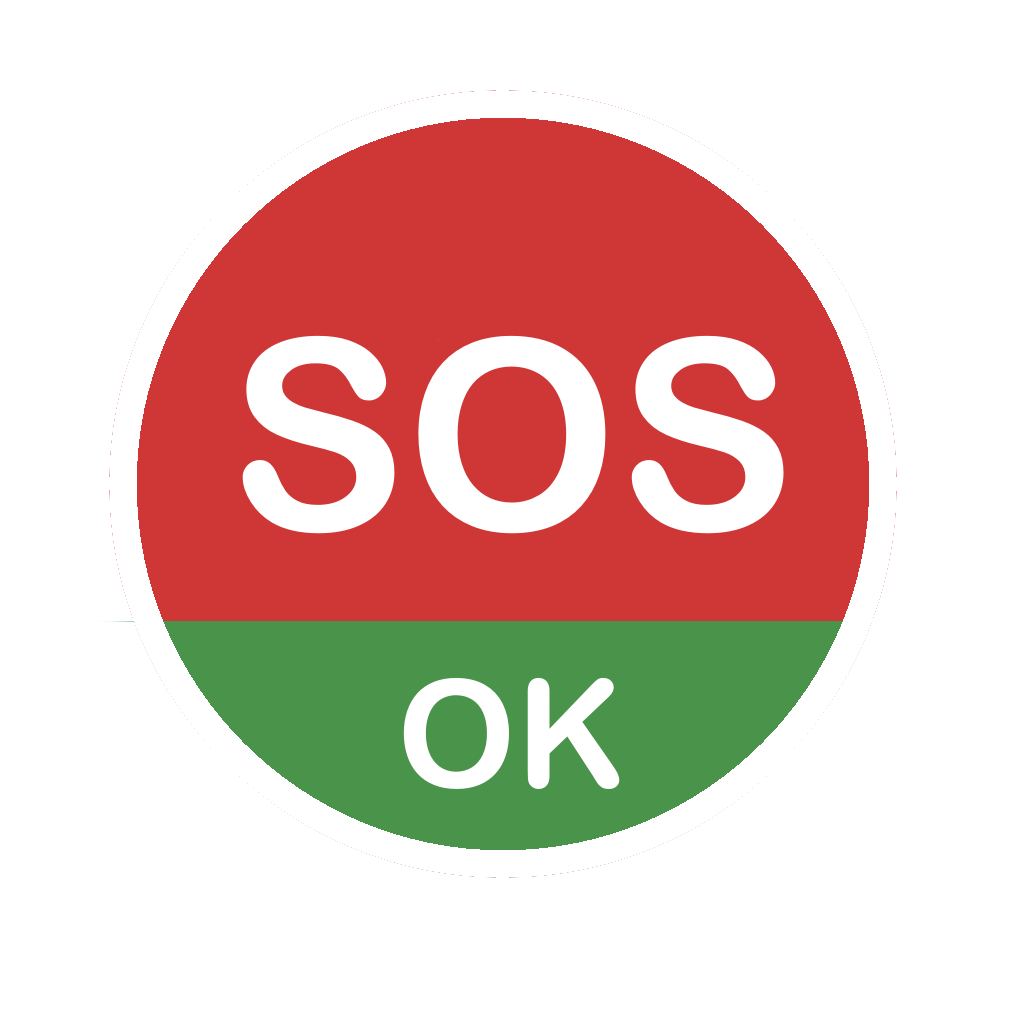
The senior's app opens directly to the Panic Mode screen — a simple, full-screen emergency button. The interface is designed to be used without reading anything:
- Large red SOS button in the center — tap to send an emergency alert
- Large green OK button below — tap to send an "I'm OK" message
- Swipe left to see pre-configured message buttons (if messages were set up)
The senior never needs to go into Settings or understand how any of it works.
Setting Up Multiple Seniors
You can set up TapAlert for multiple seniors without starting over each time:
- After generating the first Magic Link, tap "Set Up Another Senior" in the completion dialog.
- The form clears the senior's name and contacts, but keeps your Twilio credentials, email settings, and app preferences.
- Change only what's different (name, contacts, messages) for the next senior.
- Generate and share a new Magic Link.
Troubleshooting
"Validation failed" error when generating the link
- Check that all required fields are filled in (marked with a red error message).
- If Twilio is enabled, make sure Account SID, Auth Token, and phone number are correct.
- If email is enabled, verify the App Password — regular account passwords will not work.
The senior didn't receive the test SMS
- Verify the Twilio phone number is active and not a trial number sending to unverified numbers.
- In Twilio's free trial, you can only send to phone numbers you've verified in the Twilio Console. Add the senior's contacts as verified numbers, or upgrade to a paid account.
- Check that the phone number format is correct (country code included).
The Magic Link doesn't open TapAlert
- Make sure TapAlert is installed on the senior's phone.
- On some Android phones, tap-and-hold the link and choose "Open with TapAlert" instead of a browser.
- If a browser opens instead, copy the full URL and paste it into the browser again — on the second try, the system usually offers TapAlert as an option.
The senior accidentally taps the wrong button
- Increase the Alert Countdown to 10–15 seconds — this gives time to cancel before sending.
- Or switch to Hold mode (activation mode = hold) so the button requires a deliberate press-and-hold.
- You can update these settings by generating a new Magic Link with corrected settings and sending it to the senior's phone.
Twilio SMS works but email doesn't
- Most common cause: recipients don't have email addresses saved. Check recipients in the app's Recipients screen.
- Make sure the App Password is correct and hasn't expired. App Passwords from Gmail and Outlook can be revoked — generate a new one if needed.
Security and Privacy Notes
- The Magic Link payload is encoded but not encrypted. Anyone who intercepts it can read the configuration, including Twilio credentials. Share it only directly to the senior.
- TapAlert has no servers — the Magic Link is processed entirely on the senior's device. No data is sent to the TapAlert service.
- Twilio credentials in the link are stored locally on the senior's device in secure (encrypted) storage once applied.
- If you believe a Magic Link has been intercepted, rotate your Twilio Auth Token in the Twilio Console immediately and generate a new Magic Link.
Quick Reference Card (Print for the Senior)
┌─────────────────────────────────────────────┐
│            YOUR TAPALERT BUTTONS            │
│                                             │
│  🔴  Big red button  →  Send EMERGENCY      │
│                          alert to family    │
│                                             │
│  🟢  Green button    →  Send "I'm OK"       │
│                          message            │
│                                             │
│  📱  Swipe left      →  More message        │
│                          options            │
│                                             │
│  ────────────────────────────────────────   │
│  After tapping, you have N seconds          │
│  to cancel before it sends.                 │
│  Just press the X button to cancel.         │
└─────────────────────────────────────────────┘
Fill in the countdown time you configured (e.g., "10 seconds").